by Lee Mathews on January 11, 2009 at 09:00 PM
FILED UNDER: features, linux

For the last few days, Windows 7 is just about the only OS anyone has been talking about. I figured it was high time for us to share the love and take a look at some other interesting free, downloadable operating systems.
Here's a collection of 20 that are worth checking out. There are plenty more, so if you'd like to add your favorites, share them in the comments!
Fedora 10 (pictured) - One of the few live distros that didn't have any trouble with the hardware on my MSI Wind netbook. My acid test: can it properly suspend and wake? Yes - and it does it faster than Windows XP, Vista, or Windows 7. OpenSUSE and Ubuntu both failed to resume properly.
Damn Small Linux - I wouldn't feel right not listing Damn Small. It's pretty amazing what you can do with a whole OS that's not much bigger than most Windows antivirus applications. 50mb gets you Firefox, XMMS, VNCViewer, MS Office Viewer, and much more. It's also easily extendable through the MyDSL service or by using the apt command.
Linux Mint - While it's based on Ubuntu, Mint has some features that I think make it a bit more user-friendly. For starters, there are several easy ways to find and install new software including the dead simple Mint Software Portal. Find an app, click the install button, bada bing!

64 Studio - If you're into digital content creation of any kind - audio, video, or graphics - 64 Studio is a distro worth downloading. It's packed full of awesome multimedia apps and, contrary to the name, is available for 32-bit platforms as well.
live.linux-gamers.net - One of the big complaints about Linux is "Where are the games?" If you'd like to see some, why not download a live DVD that contains a truckload that you can run without even installing anything? FPS, racing, platformer, you name it - this disc has it covered.
Slax - This has always been one of my favorite light Linux distros. It's about 200mb and includes plenty of great apps. It includes a really slick boot option as well: to act as a PXE server, allowing other machines on your LAN to boot Slax over the network.
NimbleX - If you're looking for a lightweight base to run virtual PCs on, check out NimbleX. It's the smallest distro I've seen that comes with Sun's Virtual Box. You can even customize your ISO on the web site before you download it if you want. Awesome.

Haiku - Inspired by BeOS, Haiku strives to provide an environment that is simple enough for beginners to use, yet powerful enough for more experienced users to enjoy as well. As they say on their web site, Haiku wants to be "free of unnecessary complexities." There's also Zeven OS, a Linux distro with BeOS-inspired visuals.
ReactOS - Definitely an ambitious project, ReactOS is trying to produce a free, non-linux environment that is fully compatible with Windows applications and drivers. It's got a long way to go, but it's an interesting project to keep your eye on.
Mac-on-stick - Sure, OSX is pretty and functional, but can it fit on a 32mb flash drive? Mac-on-stick is a complete Mac OS 7.0.1 environment that runs on Windows, Mac, Linux, and even Pocket PC. Use it to run old-school apps or classic games like Dark Castle. It's also part of the Portableapps.Com suite.
OSX86 - No, there's no link for this one, gang. I've included OSX86 (which you can probably find yourself on any major torrent tracker by searching for kalyway) because it's an amazing example of what an enthusiastic computing community can accomplish. There's even a customized version floating around that is tailored for the MSI Wind netbook..
NetBSD - If you're not interested in trying the Hackintosh thing, why not play around with OS X's foundations? One of the great things about NetBSD is the amazing number of hardware platforms it can run on, including the Playstation 2 and Sega Dreamcast. You may also want to try Jibbed, a lightweight NetBSD livecd spinoff that runs XFCE4.

Open Solaris - The good folks at Sun play a big part in the development of a pretty mean free OS. Open Solaris is incredibly stable and is designed for reliability and network performance. It makes an excellent foundation for NAS devices and servers.
FreeNAS - Speaking of NAS, if you've got an old junker around that you'd like to turn into something useful, FreeNAS is a nice option. It's a barebones distro based on FreeBSD and is designed to turn old hardware into simple network attached storage.
IE Application Compatibility VPC Images - More free stuff from Microsoft? The VPC images include .vhd files of XP and Vista machines that can be run inside Virtual PC to test applications in different Windows OSes with different versions of IE.
VICE - Again not technically an OS, but I'm not sure anyone is really looking to multiboot the Commodore 64 or VIC20 operating systems. The VICE emulator will also run C128, PLUS4, and PET programs.

GeeXboX - Another great use of an outdated machine is to turn it into a media server/HTPC and GeeXboX is an excellent operating system to power it. There's even an ISO generator that runs on Mac and Windows that you can use to build a customized GeeXboX disc with different themes, languages, network settings, and more.
Untangle - Untangle is a free, open source gateway that is available as both a full-blown OS and a Windows application. The Windows "app" is a nice option if you don't have the hardware to spare for a standalone gateway machine.
Ultimate Deployment Appliance - UDA is a slick VMWare appliance that allows you to easily serve ISO images via a PXE environment. I love it. No more griping about badly scratched Vista or XP install discs, I just boot via the LAN interface instead.

gParted - If you're using a "questionably legal" solution like Hiren's Boot CD to manage drive partitions, you should give gParted a try. The interface and functionality is very similar to Partition Magic, and gParted is totally free and open source.
Beragam Software Gratis untuk Windows, Linux dan Mac OS
Berikut ini adalah kumpulan software gratis yang bisa diinstal pada sistem operasi Windows, Linux dan Mac OS dan bisa didownload secara gratis. Terdiri dari tutorial software , info software dan link download software.
1. Software anti maling hp dan laptop gratis (Free Anti-Theft for Mobile)
2. Celestia software simulasi planet-bintang-galaksi dan jagat raya
3. Merekam dan mengedit lagu mp3-wav menggunakan Audacity (gratis)
4. VocableTrainerX - Software untuk belajar vocabulary bahasa Jerman
5. GKamus-kamus bahasa Inggris-Indonesia gratis
6. Mengamankan password menggunakan software keepass freeware password manager
7. Fitur adobe flash player terbaru
8. Adobe Flash player untuk menjalankan file flash /animasi di web
9. Mendeteksi hardware yang tidak dikenali windows menggunakan Unkown Device Indentifier
10. Menggunakan ATF Cleaner untuk membersihkan file sampah windows dan browser IE, firefox, opera
11. Mengubah teks ke kode morse menggunakan free morse code translator
12. Cara merekam tampilan di layar komputer menjadi format video
13. Download game sonic (pc game flash gratis)
14. Download game naruto (game pc gratis)
15. Menginstall Flash player di komputer untuk membaca file flash
16. Gimp, software pengolah gambar gratis
17. Paint.NET software gratis untuk mengedit gambar (foto)
18. Beragam format file terkompresi dan archive file
19. Cara membuat cover buku 3 dimensi secara online (gratis)
20. Menampilkan atau memasang jam analog di desktop komputer
21. Download software compiler C++ portable gratis (Freeware)
22. Download eKwitansi - Elektronik Kwitansi (gratis/freeware)
23. Download microsoft office professional 2010 versi beta (gratis)
24. Google Chrome browser internet alternatif buatan google
25. Menggunakan Anti Mosquito Software untuk mengusir nyamuk
26. Stellarium software astronomi untuk mempelajari planet dan bintang
27. Photospace software edit foto offline gratis
28. Membuat file animasi gif menggunakan Photoscape
29. Software untuk membaca warna resistor
30. Program bilangan prima untuk mencari bilangan prima dalam interval tertentu
31. Download google chrome 10 offline installer terbaru
32. Memotong video menggunakan software gratis Free Video Cutter
33. Download mozilla firefox portable edition versi 4
34. Memotong video FLV/MPEG 1/MPEG 2/MPEG 4/AVI/ MOV/MP4(MPEG 4)/M4V/MPG /DivX / XviD
35. Cara memotong video FLV/MPEG 1/ MPEG 2/ MPEG 4/ AVI/ MOV/MP4 (MPEG 4)/ M4V/ MPG /DivX / XviD.
36. Software konversi FLV/MP4/3GP/MPG/AVI/WMV/SWF/MP3/WMA/AMR/OGG/AAC/WAV gratis
37. Stellarium software astronomi untuk mempelajari planet dan bintang
38. Download driver canon ip1880/ip1980/ip 2770/ip 1300/ip 1000/ip 1700/ip 1800 gratis

Now that Google has officially released Google Chromium OSto the public it’s time to get down and dirty and try it out. Of course there will be bugs and software issues, but that’s part of being one of the pioneers. Every bug found by a user and reported to the system developers, is another chance to OS perfection.
For the purpose of this tutorial on how to download Google Chrome OS (and how to install it), we are going to use the “Flow” Chromium OS build from Hexxeh, which can be downloaded here.
 Thanks to Hexxeh, who tweaked the Google Chrome OS source code, the OS can be easily installed from a 2 or 4GB flash drive in a matter of minutes. Users simply need to create a bootable flash drive with the Google Chrome OS image on their current operating system. Instructions are going to be listed for users running a version of Windows, however on the Flow homepage there are more complete instructions for Mac and Linux distro users.
After you download Google Chrome OS, back up any important files on the related flash drive. The drive will be formatted and all files will be wiped clean (you have been warned).
First we begin by downloading all important files for the operation.
Step 1: Navigate to the Vanilla Chromium Build homepage and scroll all the way to the top of the version listing (latest build version).
Step 2: Click on the “Download USB Image (picture of a USB drive)” and the zipped OS image file should begin downloading. The file is 200MB+ and should take a while so go relax and come back in about 15-20 minutes.
Step 3: Once the Chromium OS image has completed downloading, we will also need to download the Windows Image Writer so that we can successfully create a bootable image on our flash drive. The Image Writer page can be found here, with the download link on the right hand side of the page (first green tab). This download won’t take long (less than 1 minute on high speed internet) so you might as well just wait until it’s done.
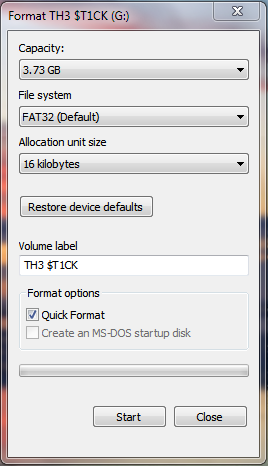 Step 4: Once everything has finished downloading we must format our flash drive. Simply insert the drive into a USB slot in your computer and wait for Windows to mount the drive. Then navigate to “Computer”, right click on the flash drive in the device list and select “format…”. The format menu will open, just click the “Start” button and Windows will automatically format your flash drive.
Step 5: Unzip the Image Writer file and open the Win32DiskImager program (Windows Vista, 7 and x64 bit users will need to right click and select the “Run as administrator” option). An error may, or may not, pop up when the program is starting. It’s referring to a floppy drive that is not installed on your machine, dismiss the error by selecting “Ok”.
Step 6: Unzip the Chrome OS .tar.gz image file you downloaded by using WinRAR or 7Zip and make sure the extracted files are in an easily navigable directory.
Step 7: In the Image Writer menu select the correct drive letter of your inserted flash drive. This can be checked easily by opening “Computer” or “My Computer”. Once the correct drive is selected, you must then select the blue folder icon and navigate to the Google Chrome OS image file in the browser window that pops up. If you have successfully selected the correct image it will show up in the address bar to the left of the open source icon.
Step 8: Double check the drive letter of your flash drive and then select “Write” after making sure. A warning will pop up indicating your drive may malfunction if you happen to select the wrong one, dismiss the warning message and the program should begin writing a bootable image to your flash drive.
Step 9: When the program has finished writing the image and displays “Done” in the bottom left corner you may then remove the flash drive and close the program.
 Step 10: Reboot the machine and choose the USB thumb drive you just created as the boot partition. The computer will then boot into the Google Chrome OS Flow build.
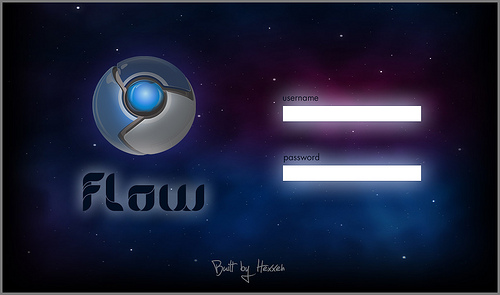
Step 11: The first time you login into the OS you will need to login using a common login name and password. The Login screen looks like the image at the top left, with the Google Chrome and Flow logos clearly evident.
Login: facepunch
Pass: facepunch
After the OS has started up simply login to a Gmail or email account. After you have successfully logged in, reboot the computer (press power off) and complete the steps again to boot into the Google Chrome OS. You should then be able to login to the OS using your Gmail account and password once it boots up. Netbook users are less fortunate, there is currently a bug preventing login – so just login using the “facepunch” info. All personal account information will be stored however so you won’t have to keep logging in after reboots.
Congratulations, now you know where to download Google Chrome OS and how to install it!
After you have completed installation and played around with the new Google Chrome OS let us know your thoughts, we have created a forum topic just for that purpose. Let us know of other Chrome OS builds out there, or any questions you may have pertaining to this one. The forum post is here.


Free Download GARUDA OS


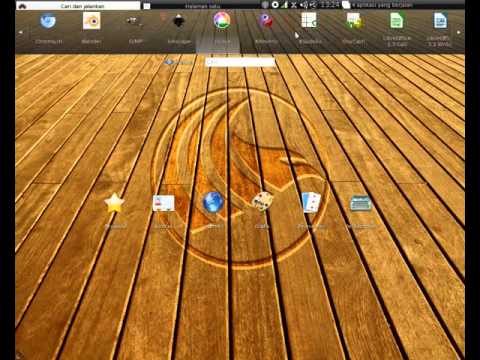


Untuk menikmati sistem operasi yang dirilis tanggal 20 Mei 2011 tersebut, para pengguna tidak perlu menggunakan komputer dengan spesifikasi yang tinggi, menurut situs resminya, spesifikasi hardware yang dibutuhkan oleh Garuda OSadalah :
* Processor : Intel Atom; Intel atau AMD sekelas Pentium IV atau lebih
* Processor : Intel Atom; Intel atau AMD sekelas Pentium IV atau lebih
* Hard disk : minimum 8 GB, rekomendasi 20 GB atau lebih jika ingin menginstal program lain
* Video card : nVidia, ATI, Intel, SiS, Matrox, VIA
* Sound card : Sound Blaster, kartu AC97 atau HDA
Kebutuhan hardware tersebut merupakan persyaratan minimum untuk Garuda OS bisa berjalan dengan sempurna di komputer PC maupun laptop anda.
Dengan dukungan sistem operasi linux, maka Garuda OS bersifat sistem terbuka (open source), beberapa fitur yang kita bisa dinikmati di Garuda OS adalah :
1. Inti (kernel) sistem operasi : 2.6.38.7
2. Desktop : KDE 4.6.3
3. Dukungan driver VGA (Nvidia, ATI, Intel, dll)
4. Dukungan Wireless untuk berbagai perangkat jaringan
5. Dukungan perangkat printer lokal ataupun jaringan
6. Dukungan banyak format populer multimedia (flv, mp4, avi, mov, mpg, mp3, wma, wav, ogg, dll …)
7. Dukungan bahasa Indonesia dan bahasa Inggris serta lebih dari 60 bahasa dunia lainnya (Jepang, Arab, Korea, India, Cina, dll…)
8. Dukungan untuk instalasi berbagai macam program aplikasi dan game (online) berbasis Windows
9. Dukungan untuk berbagai macam dokumen dari program populer berbasis Windows (seperti Photoshop, CorelDraw, MS Office, AutoCAD, dll)
10. Terbaru : Dukungan Font Aksara Indonesia, Dukungan ratusan Font Google Web
Dukungan banyaknya fitur dalam Garuda OS membuatnya layak untuk dicoba.
Kemudian yang menjadi pertanyaan, apakah OS Garuda kompatible dengan program-program aplikasi yang selama ini kita gunakan?. Tenang saja, menurut situs resminya, banyak program yang kompatible dengan Garuda OS.
Bahkan saat kita menginstal Garuda OS, sudah ada beberapa aplikasi program yang juga turut diinstal diantaranya diantaranya LibreOffice 3.3 (pengganti MS Office). Dan juga untuk browsing ada Mozilla Firefox 4.0.1, Chromium, Opera. Untuk edit gambar pengganti photosop ada GIMP. Bagi anda yang membutuh remote dekstop ada Team Viewer. Dan kalau anda butuh hiburan ada beberapa permainan yang tersedia diantaranya Mahjong, Tetris, Rubik, Billiard, Pinball, BlockOut, Sudoku, Reversi.
Bahkan saat kita menginstal Garuda OS, sudah ada beberapa aplikasi program yang juga turut diinstal diantaranya diantaranya LibreOffice 3.3 (pengganti MS Office). Dan juga untuk browsing ada Mozilla Firefox 4.0.1, Chromium, Opera. Untuk edit gambar pengganti photosop ada GIMP. Bagi anda yang membutuh remote dekstop ada Team Viewer. Dan kalau anda butuh hiburan ada beberapa permainan yang tersedia diantaranya Mahjong, Tetris, Rubik, Billiard, Pinball, BlockOut, Sudoku, Reversi.


Tidak ada komentar:
Posting Komentar